A browser is the app you use to open websites, manage tabs, search the web, save bookmarks, download files, and control basic privacy and security settings. The fastest way to understand browser basics is to learn what each everyday feature does, when it matters, and which settings are worth checking before a problem appears.
Browser Answers at a Glance: Know the address bar, tabs, downloads, bookmarks, history, extensions, privacy controls, and update settings first.
A browser is not the internet itself. It is the tool that requests, displays, and helps manage web pages.
Most browser problems come from overloaded tabs, outdated software, risky extensions, cached site data, or misunderstanding private browsing.
What does a browser actually do?
A browser translates web addresses, sends requests to websites, receives page files, and displays those files as a page you can read, watch, search, and interact with. That sounds technical, but the daily experience is simple: you type a question, click a link, open a tab, download a file, sign in to a service, or save something for later.
Popular browsers differ in layout and extra features, yet the core ideas are similar. The address bar is where you type a web address or search query. Tabs let you keep several pages open without opening separate app windows. Bookmarks save pages you want to revisit. History records pages you have visited. Downloads store files you intentionally saved from the web. Extensions add features, but they can also create clutter or security risk if installed casually.
For a practical overview of browser features, the official Google Chrome Help Center is useful even for readers who use another browser, because the same basic concepts appear across most modern browsers.
Browser Basics FAQ for Everyday Use
Is the address bar the same as a search box?
In most modern browsers, yes. The address bar can open a full web address, such as a site URL, and it can also send a search query to your default search engine. The difference matters when you are troubleshooting. If a known website does not load, confirm that you typed the address correctly. If you only need information, a search phrase is fine.
What is a tab, and why do too many tabs slow things down?
A tab is one open page inside the browser window. Each tab can use memory, network activity, scripts, media, and background processes. A few tabs are normal. Dozens of active tabs can make the browser feel slow, especially when video, dashboards, documents, and social feeds are open at the same time. Google explains core tab behavior in its Chrome tab management guide, and the same habit applies widely: close what you are not using, group work by task, and restart the browser when it has been running for days.
What are bookmarks best for?
Bookmarks are best for pages you intentionally want to revisit, not for every page you may read someday. A cleaner habit is to create folders for banking, work tools, research, forms, and reference pages. If you save everything into one long list, bookmarks stop helping. Chrome's official guide to creating and editing bookmarks shows the basic pattern: save, rename, organize, and remove old links.
What browser settings should beginners check first?
Start with settings that affect security, privacy, speed, and daily convenience. You do not need to change every option. You do need to know where the important controls live.
- Default search engine: Choose a search provider you trust and understand.
- Downloads folder: Know where downloaded files go so you do not lose documents.
- Password saving: Decide whether to use the browser password manager or a separate password manager.
- Privacy and site permissions: Review camera, microphone, location, and notification permissions.
- Extensions: Remove extensions you do not recognize or no longer use.
- Updates: Keep the browser current so security fixes arrive quickly.
Browser security warnings can be confusing, especially when a page shows HTTP instead of HTTPS. That issue is covered in more detail in the HTTP vs HTTPS comparison, but the simple rule is this: do not enter passwords, payment details, or private information on a page that your browser marks as not secure.
What is private browsing, and what does it not do?
Private browsing, sometimes called incognito mode, usually prevents the browser from saving local history, cookies, and form entries after the session ends. It does not make you anonymous to websites, employers, schools, internet providers, or every tracking method. It is useful for signing into a temporary account, testing a page without saved cookies, or using a shared computer more carefully. It is not a full privacy shield.
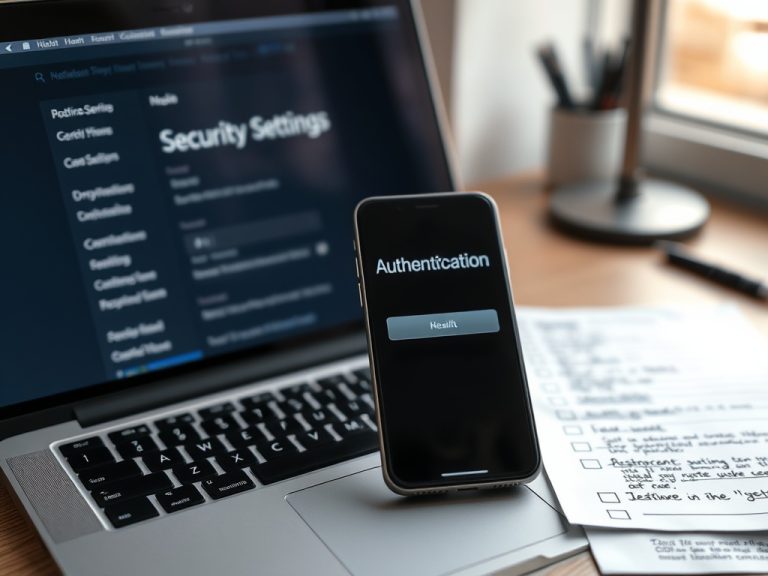
A common mistake is treating private browsing like a security product. It does not replace strong passwords, two-factor authentication, software updates, or careful downloads. It also does not erase files you downloaded during the session.
Why do websites ask for camera, microphone, and notification permissions?
Websites ask because browsers block many sensitive features until you grant permission. A video meeting service needs camera and microphone access. A map may request location access. A news site may ask to send notifications. The safe habit is to approve permissions only when they match the task you are doing.
For example, a video call tool asking for camera access makes sense. A random article asking for microphone access does not. If a meeting still fails after you approve permissions, the issue may involve your device setup. The related webcams and microphones buying guide explains how camera quality, microphone placement, lighting, and testing affect video calls.
How do downloads create risk?
Downloads create risk because a file can contain unwanted software, scripts, macros, misleading names, or outdated installers. Do not open files just because a website says you must. Check the file source, expected file type, and reason for downloading. Be extra careful with executables, compressed files, unknown browser extensions, and documents that ask you to enable macros.
Keep a habit of clearing unnecessary downloads and scanning suspicious files with your security software. Also remember that downloading a file in private browsing does not automatically delete that file from your computer.
What should I do when the browser feels slow?
Do the simple checks before reinstalling anything. Close unused tabs, restart the browser, remove suspicious extensions, update the browser, clear site data for the affected website, and test another browser if one site keeps failing. If everything on the computer feels slow, the browser may not be the only problem. System-level maintenance issues are covered in common system update mistakes, especially when app updates, operating system patches, and restarts are postponed for too long.

How should beginners build better browser habits?
A good browser routine is small and repeatable. Review extensions once a month. Keep the browser updated. Use bookmarks for durable references, not temporary clutter. Treat warnings as signals, not annoyances. Check permissions after joining new services. Keep downloads organized. Use a password manager and multi-factor authentication for accounts that matter.
The goal is not to memorize every setting. The goal is to recognize the parts of the browser that affect trust, speed, and control. Once those basics are familiar, web problems become easier to explain and easier to fix.
A Safer Browser Routine to Try Next
Open your browser settings today and check three things: installed extensions, site permissions, and update status. That short review will make future troubleshooting easier and help you spot risky habits before they become larger problems.