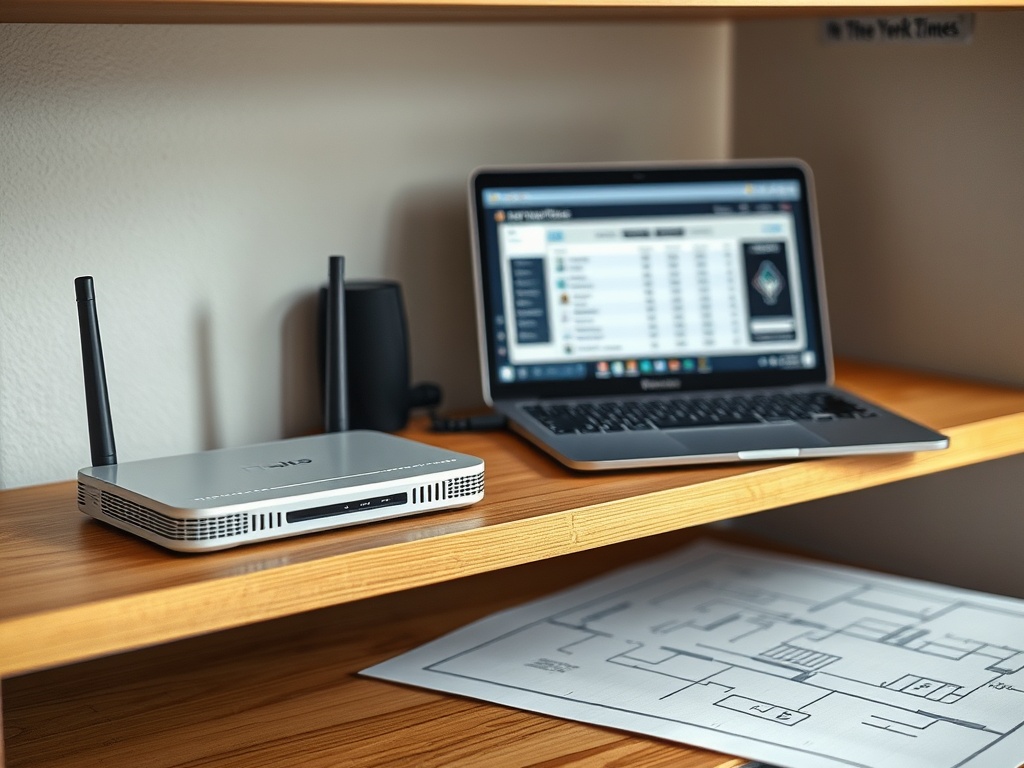

To fix connection drops and Wi-Fi dead zones, first prove where the problem happens, then test signal strength, router placement, device behavior, interference, and wired performance before buying new hardware. The best fix might be moving the router, using Ethernet, adding mesh coverage, replacing an old router, or reducing congestion.
Connection Fix Brief: Do not start by buying a new router. Start by mapping where the connection fails.
Dead zones are usually location problems; random drops may involve device, router, modem, ISP, or interference issues.
A wired test is the fastest way to separate Wi-Fi trouble from broader internet trouble.
Step 1: Identify the pattern before changing settings
Write down where, when, and on which devices the problem happens. Does the laptop drop only in one room? Do all devices fail at once? Does streaming break but browsing still work? Does the connection fail after someone starts a video call? A pattern turns a vague complaint into a testable issue.
The FCC's home network tips recommend central router placement and note that Ethernet can provide the highest speeds while reducing Wi-Fi congestion. That advice is simple, but it points to the first diagnostic question: is this a wireless coverage issue or a whole-internet issue?
Step 2: Run a wired baseline test
If possible, connect a laptop directly to the router with Ethernet and run the same activity that usually fails. If the wired connection is stable but Wi-Fi drops, focus on wireless coverage, interference, and router placement. If Ethernet also fails, the issue may involve the modem, router, ISP, cable line, account, or device configuration.
Do not rely on one speed test alone. Run tests in the same room as the router, in the dead zone, and at the time of day when the issue appears. Speed is useful, but stability matters more for calls, gaming, remote work, and uploads.
Step 3: Improve router placement before upgrading hardware
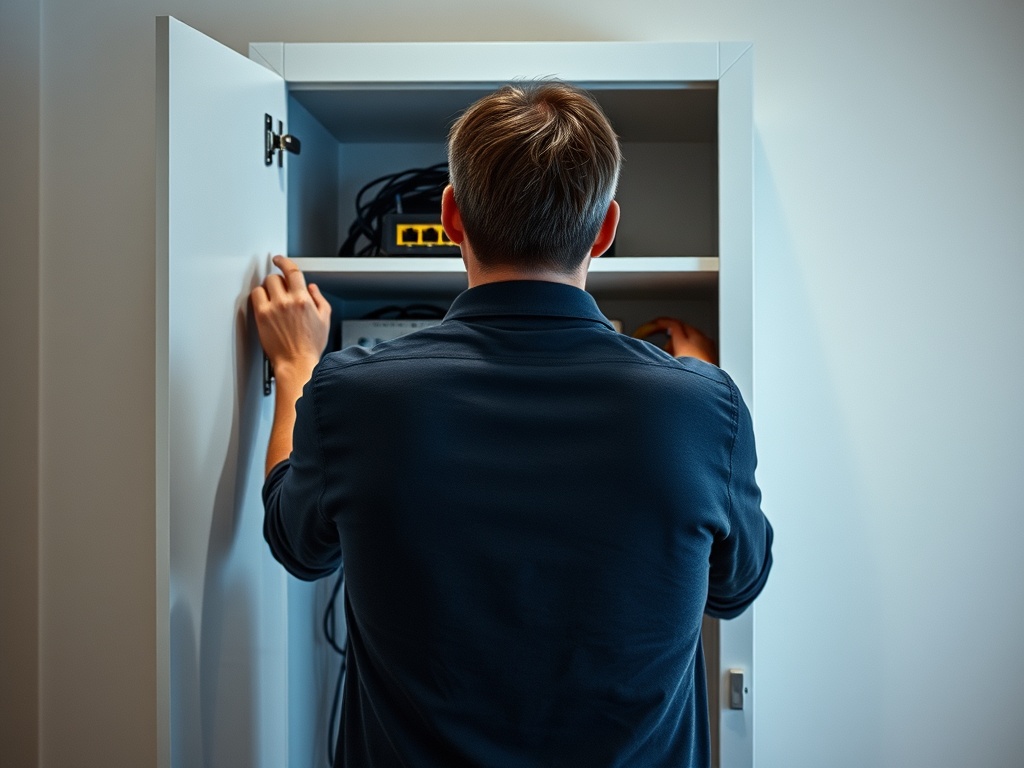
Router placement is often the cheapest fix. Put the router in a central, elevated, open location. Avoid hiding it inside a cabinet, behind a TV, near thick walls, beside large metal objects, or next to devices that create interference. If the router sits at one far edge of the home, the opposite edge will likely suffer.
Apartment buildings can add a different challenge: nearby networks. In crowded spaces, interference and channel overlap can make Wi-Fi feel random. Newer routers often manage channels automatically, but older hardware may need a restart or configuration review.
Step 4: Separate dead zones from device-specific failures
A dead zone is a physical area where signal is consistently weak. A device-specific failure follows one laptop, phone, or smart TV around the house. If one device drops everywhere, update its system software, forget and rejoin the network, check power-saving settings, and test another network. If every device fails in the same room, map coverage.
This distinction matters for spending. A mesh system may help a coverage dead zone. It will not fix a single laptop with a failing Wi-Fi adapter or outdated driver. For device maintenance basics, see system update mistakes that slow you down before replacing network gear.
Step 5: Match the fix to the cause
| Symptom | Likely area to test | Possible fix |
|---|---|---|
| Weak signal in one room | Distance, walls, router placement | Move router, add mesh node, consider wired backhaul |
| Drops on all devices | Modem, router, ISP, power | Restart equipment, check service status, contact provider |
| Drops on one device | Device software or adapter | Update, reset network settings, test USB adapter |
| Slow video calls only | Upload stability and congestion | Use Ethernet, pause heavy uploads, improve Wi-Fi coverage |
| Warnings on secure sites | Browser, certificate, or network issue | Compare networks and review HTTP vs HTTPS warnings |
Step 6: Consider mesh, extender, or Ethernet carefully
Mesh Wi-Fi helps when you need broader coverage and can place nodes thoughtfully. A range extender can help in simple layouts but may reduce performance if placed where the signal is already weak. Ethernet is less flexible but more stable for desks, TVs, gaming systems, and workstations. Powerline and MoCA solutions can help in some homes, but results depend on wiring quality.
The analysis here is practical rather than universal. A small apartment, thick-walled house, multi-floor home, and shared office do not need the same solution. The right answer depends on layout, building materials, router age, device count, and how much you rely on video calls or uploads.
Step 7: Secure the network while you troubleshoot
Connection problems often lead people to disable security settings, share passwords broadly, or leave guest access open. Avoid that. Use a strong Wi-Fi password, separate guest access when needed, update router firmware through official tools, and change default admin credentials. If you suspect unknown devices or account exposure, use the data breaches checklist to review credentials and recovery options.
Do not post router screenshots online without blurring network names, IP addresses, serial numbers, and account details. Troubleshooting should not create a privacy problem.
Quick success checklist
Before buying hardware, confirm these items:
- Router is central, elevated, and not hidden.
- Ethernet test is stable or the ISP issue is identified.
- Problem rooms are mapped.
- Devices are updated and restarted.
- Router firmware is current.
- Heavy uploads or downloads are paused during calls.
- Guest and IoT devices are not overwhelming the main network.
For meeting-specific problems, the webcam and microphone guide can help distinguish network trouble from camera, microphone, and app settings.
Build a Room-by-Room Fix Plan
Choose one trouble spot, test it near the router, test it with Ethernet if possible, then move outward. A map-based approach prevents random purchases and makes support calls more productive.
When to call the internet provider
Contact the provider when the wired connection drops, modem lights show errors, speeds are far below the plan across several devices, or outages appear at the same time each day. Before calling, restart the modem and router in the order the provider recommends, record test times, and note whether Ethernet was stable. Support is easier when you can say, for example, that Wi-Fi fails only upstairs or that Ethernet also drops every evening. That detail prevents the conversation from turning into generic script reading.
When to replace the router
Replacement makes sense when the router is very old, no longer receives firmware updates, cannot cover the space even after better placement, or lacks the security and device capacity your household needs. It should not be the first move, but it should be on the table when diagnostics show the router is the weak link.